API keys
An API key lets programs — the yongzhi-im bridge, CLIs, MCP clients, your own scripts — call the platform on your behalf. Keys are account-level and carry fences that limit exactly what they can do.
Create a key
- Settings → API Keys.
- Optionally name it, then check the permissions, knowledge-base scope, and model scope (fences).
- Click Generate key.
- Copy the key — it starts with
rag_. It's shown only once; store it safely, like a password.
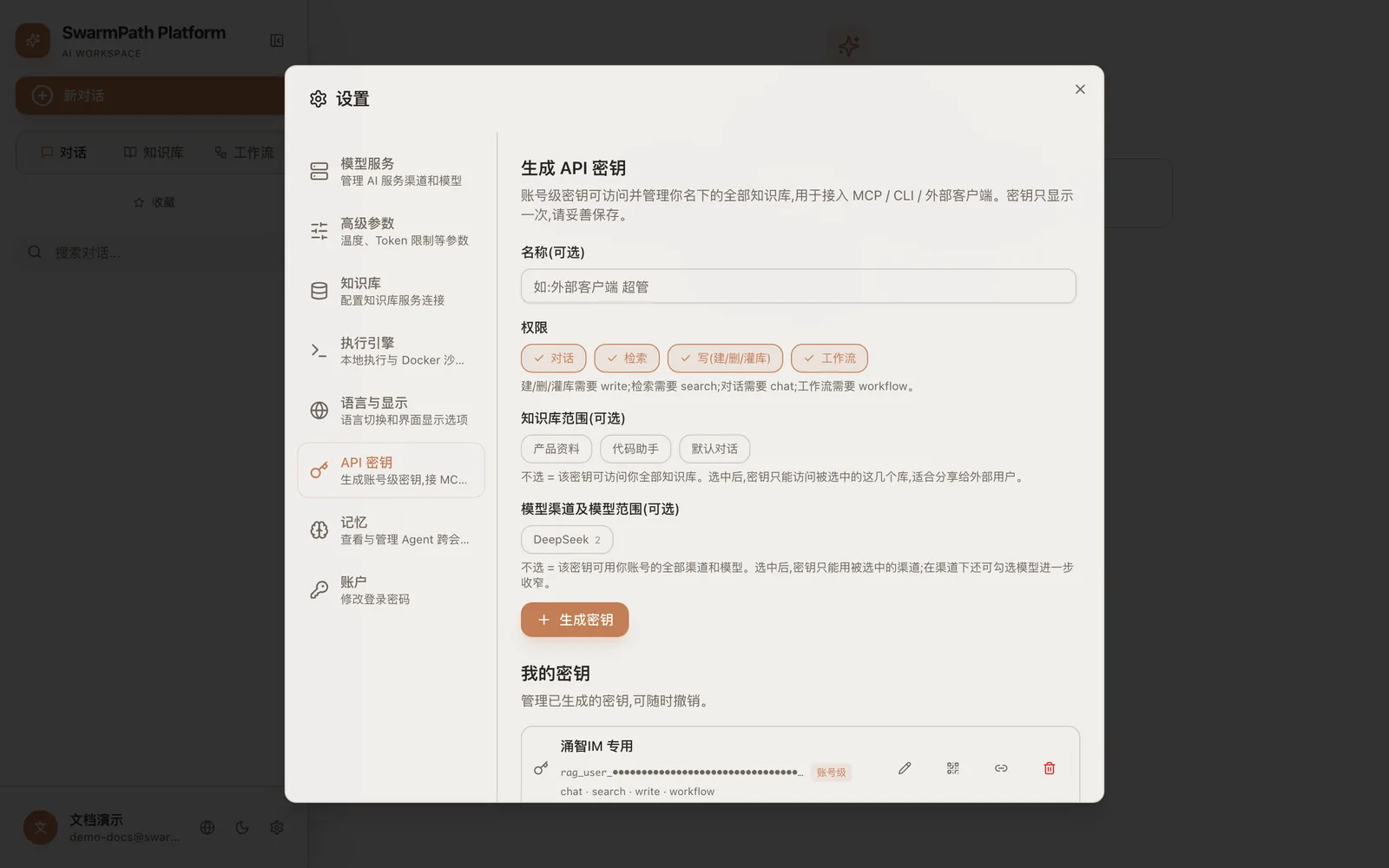 Generate key (shown in Chinese): check chat/search/write/workflow, and narrow the KB & model scope to what's needed
Permissions
A key grants only the permissions you check:
| Permission | Allows |
|---|---|
chat | Send chat / agent requests |
search | Query knowledge bases |
write | Modify projects / documents |
workflow | Trigger workflows |
Fences (scope)
Fences restrict a key to a subset of your account:
- allowedProjects — only these projects/knowledge bases.
- allowedChannels — only these model channels.
- allowedModels — only these models.
A tightly-fenced key (e.g. chat + search, one project, one model) is safe to hand to an integration: even if it leaks, its blast radius is exactly what you scoped.
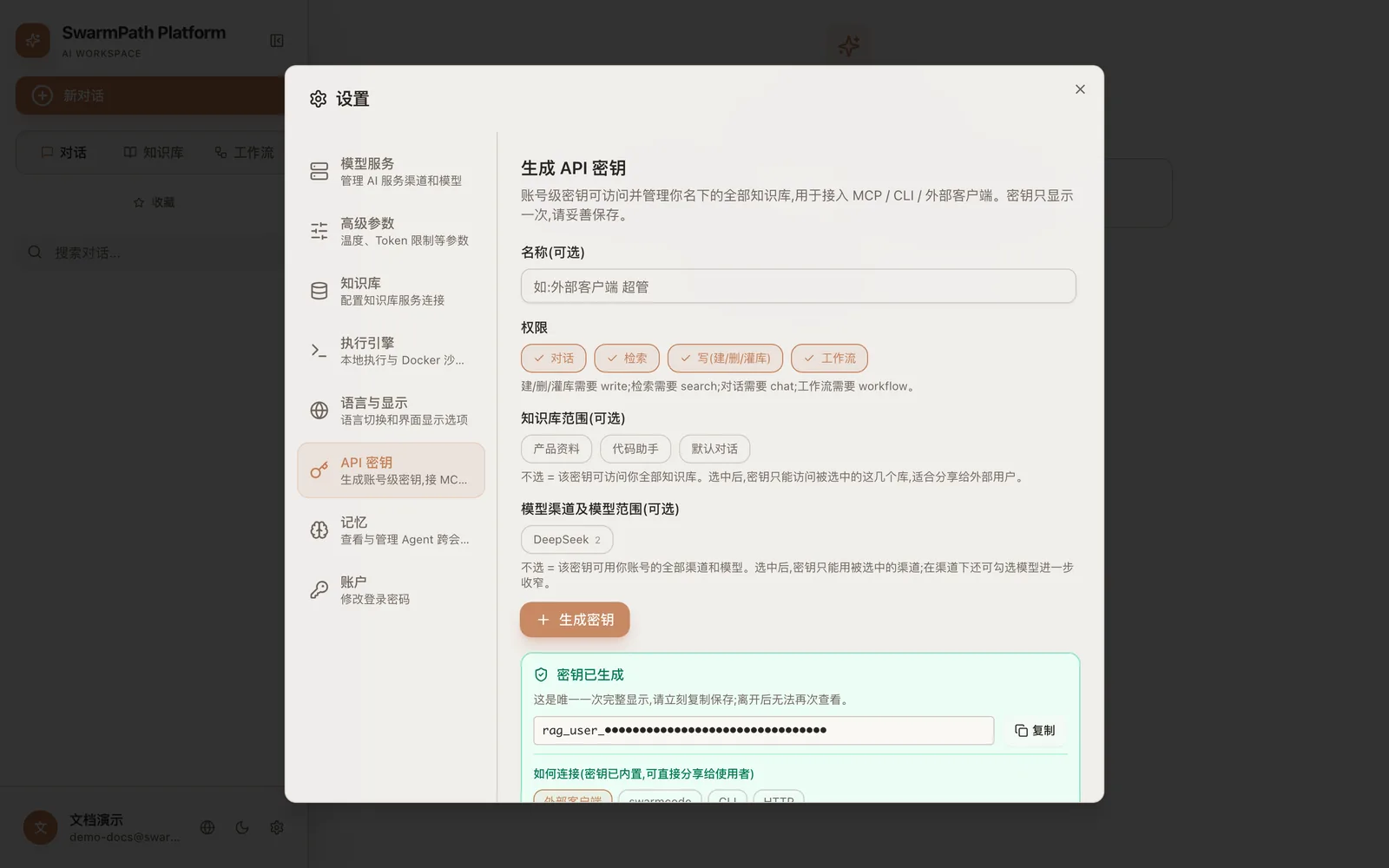 The secret is shown only once (redacted here) — copy it immediately; "My keys" below lists all keys, revocable anytime
Using a key
Send it as a bearer token to the platform's public API:
curl https://www.hipmmai.com/v1/chat \
  -H "Authorization: Bearer $HIPMMAI_KEY" \
  -H "Content-Type: application/json" \
  -d '{"message": "Summarize the latest doc in my project", "projectId": "…"}'
The same key also works with MCP clients that point at the platform's MCP endpoint, so an external assistant can search your knowledge base.
Revoking
Delete a key from Settings → API Keys at any time; it stops working immediately. Revoking one key never affects your other keys.
Next
- yongzhi-im — bind a key to the yongzhi-im app with a QR code, without ever exposing the key itself.
- hipmmcode — drive the agent programmatically.