Knowledge base (RAG)
Every project has its own private knowledge base. Upload documents, and the assistant answers questions grounded in them — this is retrieval-augmented generation (RAG).
Create a project = create a knowledge base
- Sidebar → Projects → New project.
- Name it, optionally add a description and an AI instruction (a standing prompt applied to chats in this project).
- The knowledge base is created with the project, one-to-one.
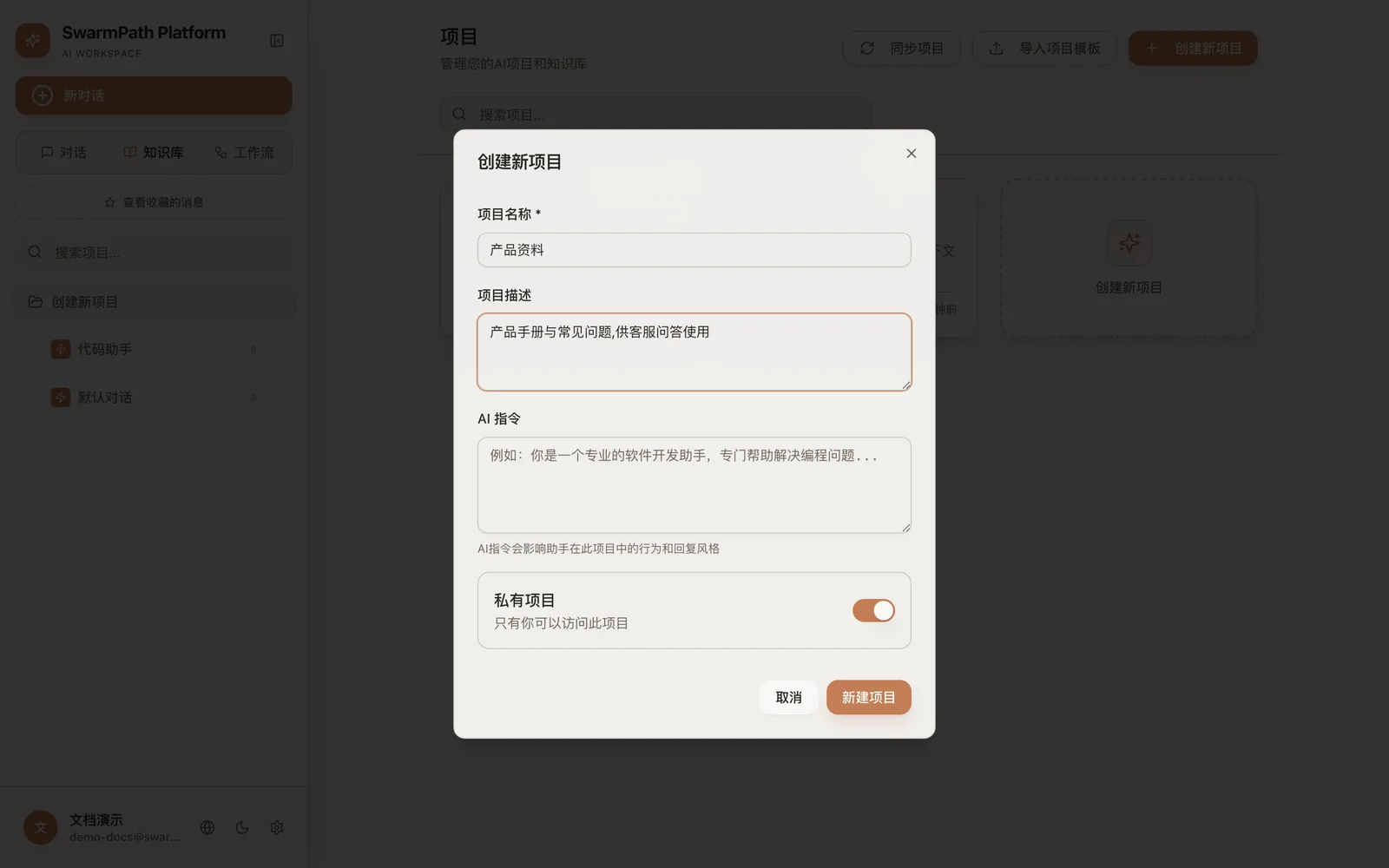 New project (shown in Chinese): name, description, AI instruction, private toggle
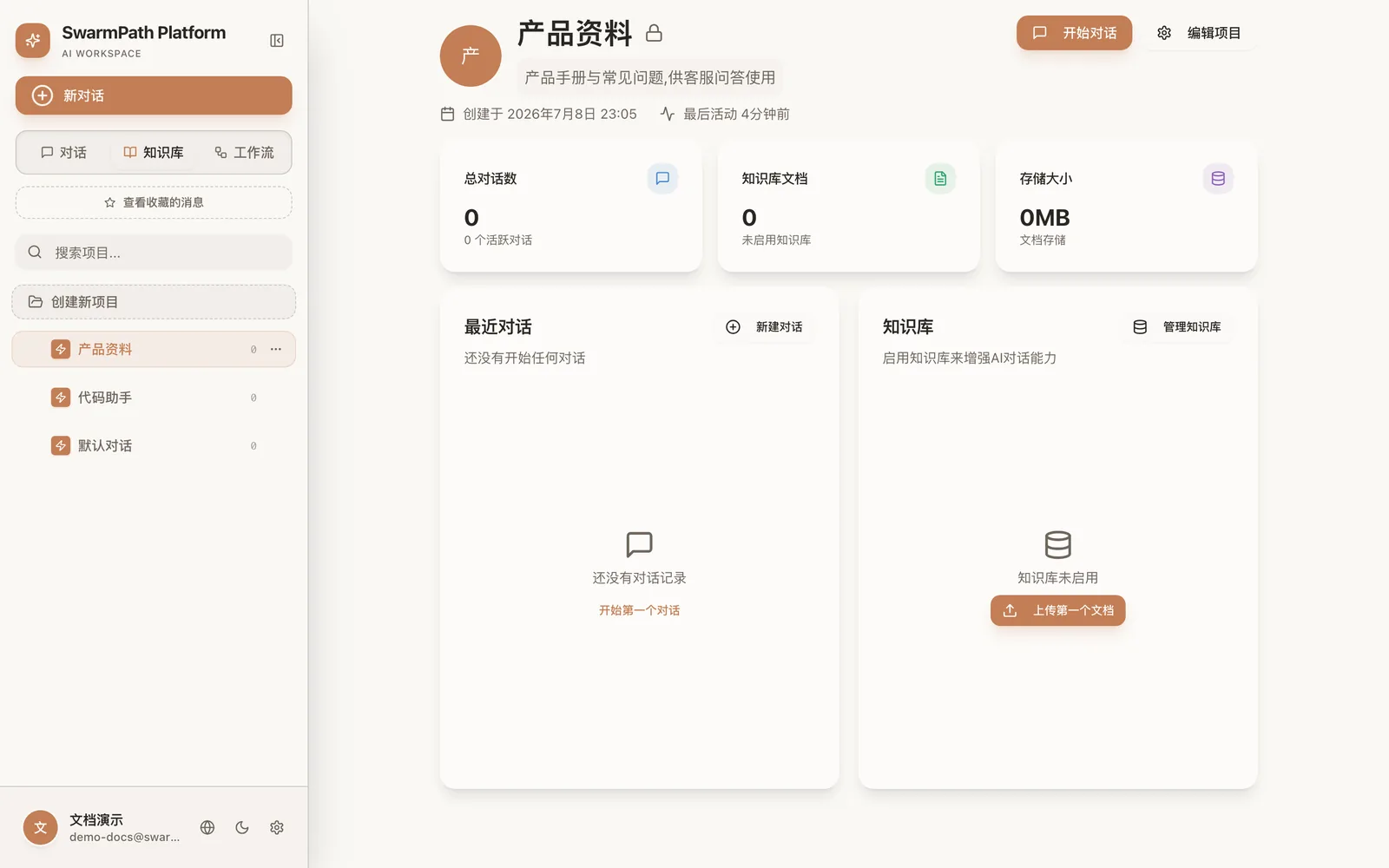 Project detail: chats / documents / storage at a glance; click "upload first document" to build the KB
Upload documents
Open the project's Knowledge base tab and drag files in (or click to browse).
Supported formats: PDF, Word (.docx), Excel (.xlsx), PowerPoint (.pptx), HTML, CSV, JSON, Markdown, and plain text.
Each document moves through states you can watch on its card:
pending → processing → completed
                    ↘ failed
During processing the platform splits the document into chunks, adds a short context prefix to each, embeds them, and indexes the vectors. This uses the platform's default retrieval models — see Model channels.
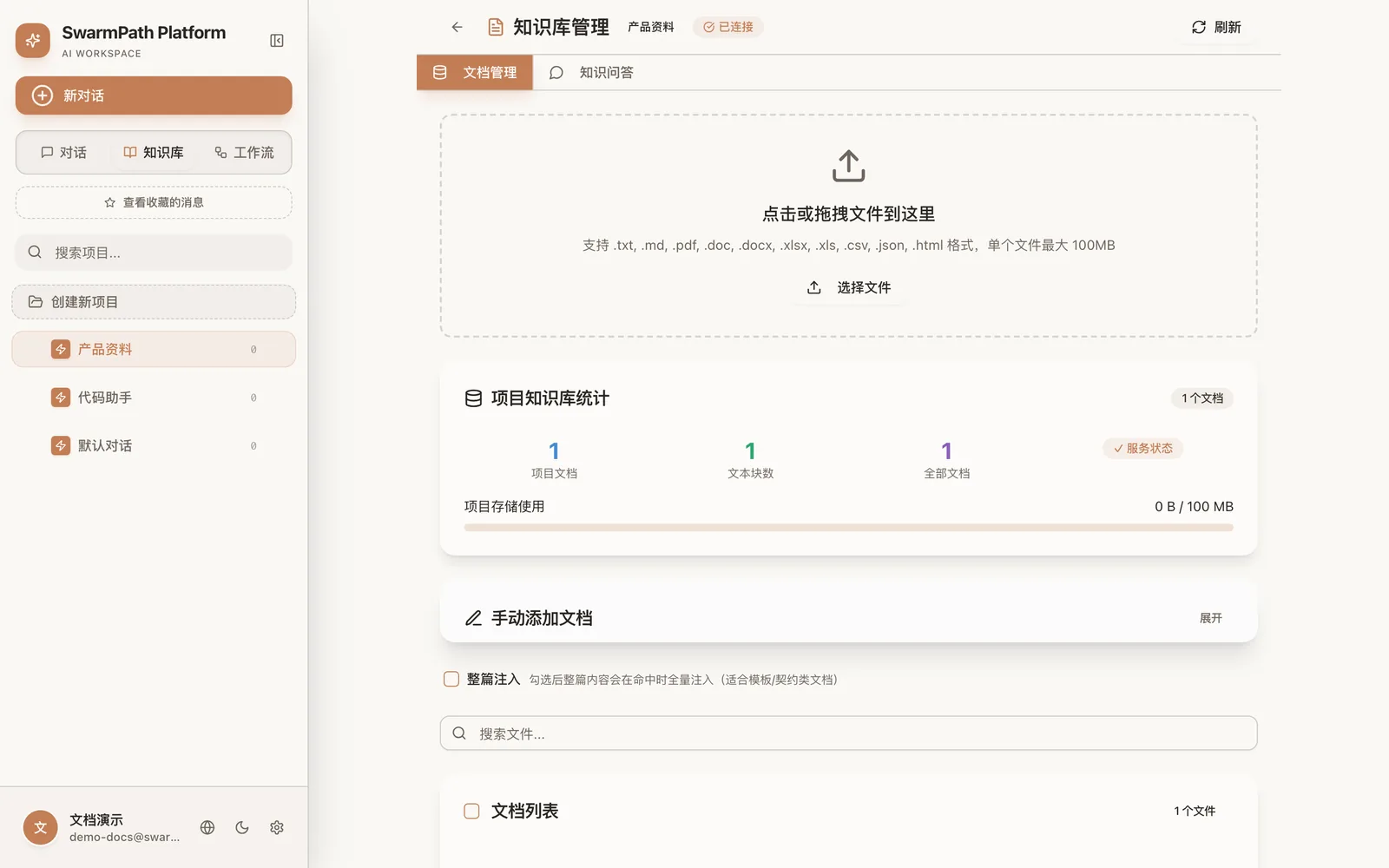 KB management (shown in Chinese): click or drag to upload (100 MB/file max); live counts of documents, chunks, and storage below
Whole-document injection
For documents where every word matters — contracts, templates, SOPs — mark the document for whole-document injection. Instead of retrieving a few chunks, the assistant is given the entire document (when it fits the model's context window). The platform automatically balances whole-document injection against chunk retrieval based on the model's context budget.
Test what retrieval returns
Use the knowledge-base test panel to type a query and see:
- which chunks matched,
- their similarity scores,
- and the reranked order.
This is the fastest way to check that a document was indexed well and that your questions hit the right passages.
Chatting against the knowledge base
To make a chat use a knowledge base, open that project first, then start the conversation from inside it:
- In the sidebar, switch to the Knowledge base tab.
- Open the project you want to use (click its card).
- At the top of the project page, click + New chat — the new conversation is now bound to this project's knowledge base.
- Ask away; relevant passages from that base are retrieved automatically.
A chat started straight from Chats → New chat in the sidebar isn't bound to any project and won't search a knowledge base. To let a chat "see" your documents, always start it from inside the project.
See Chat for how retrieval interacts with your questions, and Agent mode for turning retrieved knowledge into generated files.
Changing retrieval settings later
If platform retrieval settings change, already-ingested documents keep their existing index — re-processing only happens at ingestion time. To apply new settings to an old document, re-upload it. Your vectors and existing answers are otherwise unaffected.